Viewing the Virtual Machine Properties
You can view the list of virtual machines in the vCenter.
To view the virtual machine, follow the instructions below:
1. Select the Inventory icon (  ).
).
).By default, the switches inventory list is displayed.
2. Click the Switches drop down and select Virtual Machines.
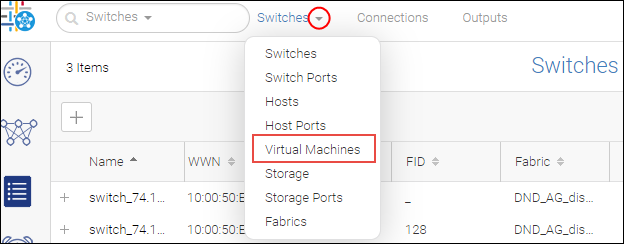
3. Click (  ) on a selected virtual machine and select View.
) on a selected virtual machine and select View.The Virtual Machine window displays the VM properties, VM path information, and VM datastore information.
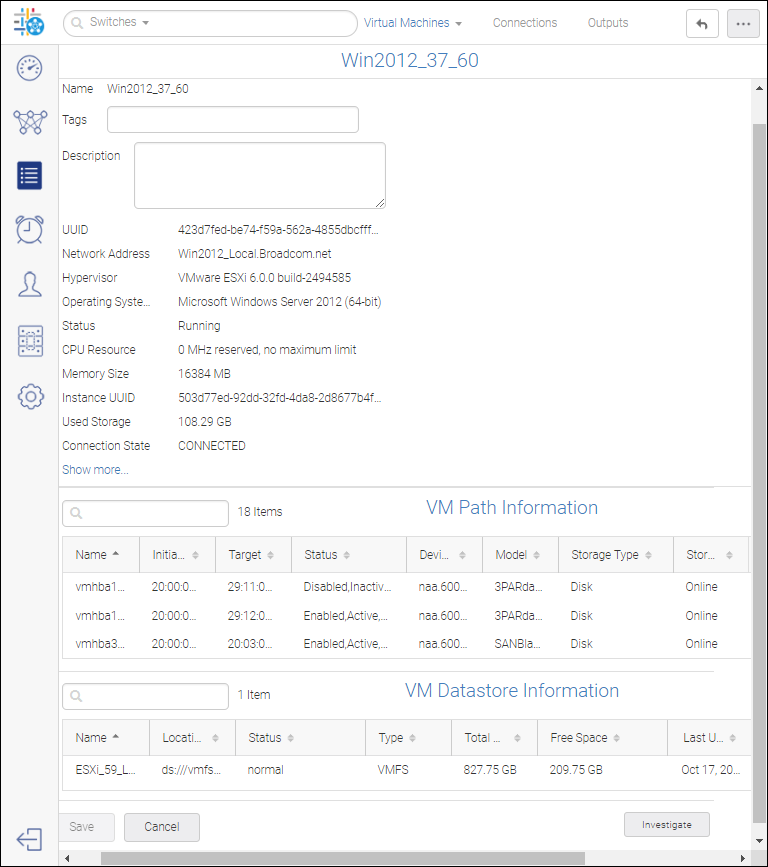
Note: You can investigate the CPU, memory, network, and disk utilization by clicking the button Investigate. For more information, refer to the Investigating the Virtual Machines section.
4. Click ( ) on a VM Path Information or VM Datastore Information and select Show Properties to view the properties.
) on a VM Path Information or VM Datastore Information and select Show Properties to view the properties.5. Click Save to save the tags and description.
Parent topic