Context Search
SANnav Context Search is used to search and display objects based on key properties. Context search allows you to drill-down to an object list view or detailed view based on feature-specific context. You can perform a search in the Dashboard and Inventory pages.
Figure 7. Context Search
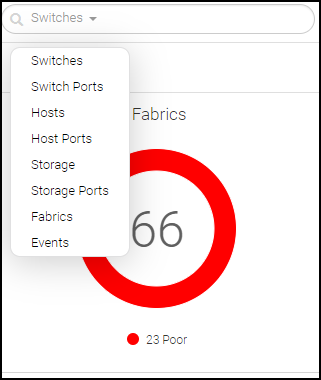
You can select any feature from the drop down (  ) and press Enter to perform a Context search. For example, if you select Switch Ports and type any content in the search box, it will search for data matching the key properties of all the switch ports currently available and display the results with the properties of the search content.
) and press Enter to perform a Context search. For example, if you select Switch Ports and type any content in the search box, it will search for data matching the key properties of all the switch ports currently available and display the results with the properties of the search content.SANnav supports a type-ahead search option. After you type three or more characters, auto-suggestion is listed and search results displays. If you type less than three characters, then you need to press Enter to fetch the auto-suggestion. Based on the suggestion, a maximum of 10 results will be displayed.
The following figure shows the search result of "swi" for Switches from the Inventory Page.
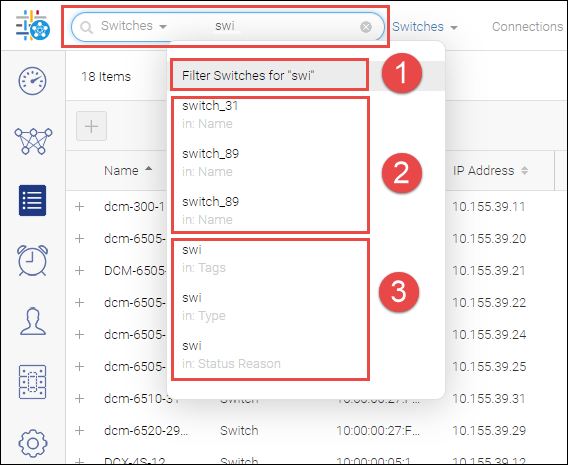
1. Search text for filtering. Click to redirect to the list view of data which is filtered based on the search term against any one of the properties matching the search context across all switch properties or fields.
2. Primary properties like Name or Zone Alias. Click any search result to redirect to the detailed view of that entity.
3. Secondary properties such as Tags, Type, or Description. Click any search result list to redirect to the list view of the selected entity context.
Parent topic