Disabling and Enabling a Switch
To disable or enable a switch, you must have the following:
• Element Manager - Product Administration privilege with read/write permission
To disable or enable a switch, follow the instructions below.
1. Open the details page for the switch.
a. Click the Inventory icon (  ), and then select Switches from the drop-down list.
), and then select Switches from the drop-down list.b. Locate the switch, click the down arrow to the right of the switch, and select View from the action menu.
The switch details page displays.
2. Scroll down to the bottom of the details page and select Disable Switch.
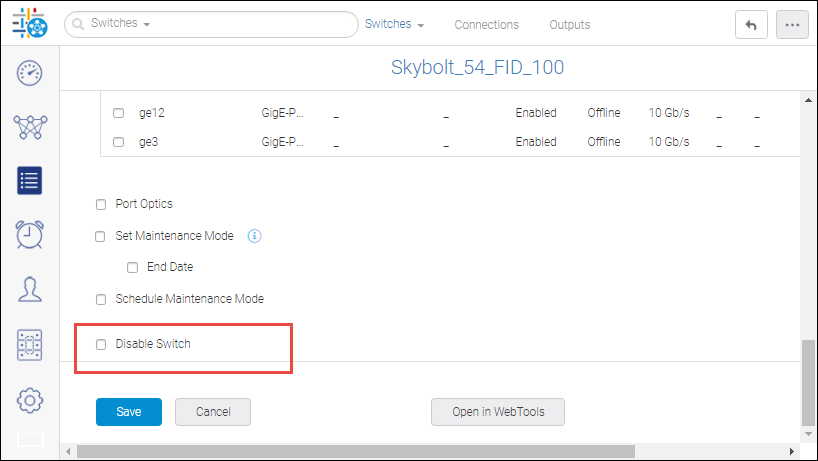
3. Click Save.
4. Click OK in the confirmation dialog box.
Note that when you disable a non seed switch, the switch moves to a missing state. Switch in a missing state must be enabled before you can perform any other actions on the switch.
When you want to enable the switch, go back to the switch details page, uncheck Disable Switch, and click Save.
Click OK in the confirmation dialog box.
Parent topic