Creating Host and Storage Enclosures
In SANnav Management Portal you can create logical host and storage enclosures so that you can view the hosts and storage in the topology.
SANnav Management Portal discovers host ports and storage ports, but does not always discover hosts and storage.
The inventory page displays a list of hosts that SANnav knows about. Some hosts (ESXi hosts) are automatically discovered through vCenter discovery. Some hosts (FDMI hostname-based) are enclosures that are created automatically during discovery. All other hosts must be manually created.
SANnav does not discover any storage devices. You must manually create logical storage enclosures.
The following procedure shows how to create a host enclosure. The steps for creating a storage enclosure are similar.
1. Click the Inventory icon (  ), and then select Hosts from the drop-down list.
), and then select Hosts from the drop-down list.If you are creating a storage enclosure, select Storage from the drop-down list.
2. Click the + button in the upper right corner of the window to add a storage or host.
3. Enter a name for the enclosure and additional information, and click Save.
Host and storage names must be unique.
The host displays in the Inventory page. Notice that the Created By column display "Manual", which means you manually created this enclosure.
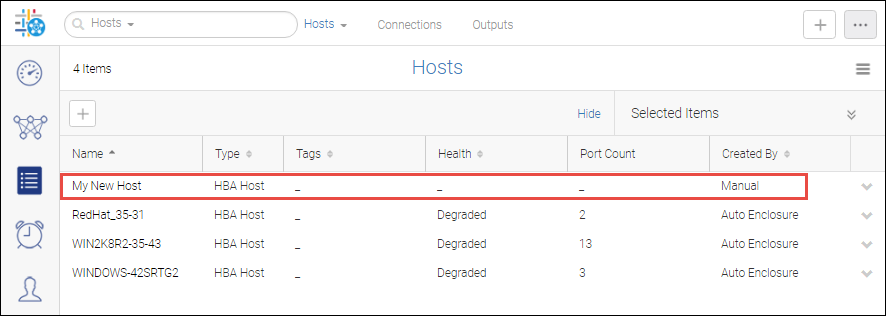
You can view this new host in the Topology page, but at this point, no ports are mapped to the enclosure. The next step is to map host ports to the host enclosure.
Parent topic